Introduction
Survey management will be done mostly in the Sites tree view, accessible from the Site tab. You will learn how to,
- Manage different survey types.
- Filter surveys for batch processing an other operations.
- Export surveys.
- Delete surveys.
- Re-assign surveys to a different site.
- Read the log file.
- And more.
Survey names
After importing, surveys will be listed in the site tree view.
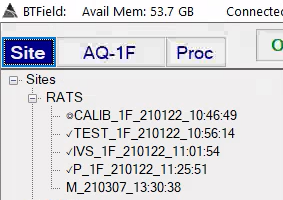
The surveys naming structure can be broken down into 5 components using this example IVS survey: ✓IVS_2Fa_251022_15:11:31 tokenized as,
"{0}{1}_{2}_{3}_{4}"
then the above tokens indicate,
- 0: Processing status. The prefixed checkmark ✓ indicates processing has been completed with the P Flow1
- 1: BTField AQ Cfg where 2Fa indicates that 2 Tx were used, and the UltraTEM was operating in F frequency mode. The last leter “a” indicates the specific data consumption configuration that was used during collection (i.e. which sensors were enabled/disabled, which sensors were selected as primary sensors, etc.).
- 2: Survey type
- 3: day of the year when acquired.
- 4: time of day when survey was initiated in the field.
Survey types
Several survey types are utilized in BTField. Common ones are listed below. Survey’s of a particular type will have different processing available to them. It’s important to understand the difference between each.
| Survey Type | Description |
|---|---|
| FT | System function test. |
| IVS | Instrument verification test. |
| TEST | Additional test reserved for anything, eg troubleshooting. |
| P | Production data. |
| M | Master survey for storing global information about all surveys within a site. |
| SU | Survey Unit for storing global information about all surveys that have data falling within a defined SU boundary. |
| SYNTH | SYNTH survey for performing synthetic seeding analysis on data. |
Site commands
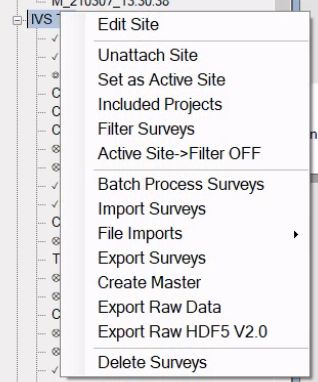
A Site can be thought of as a container for all data collected within a specific geophysical area. A Site node has a number of useful commands for configuring the site or for operating on surveys listed in the site. This section will provide descriptions of each.
Survey commands
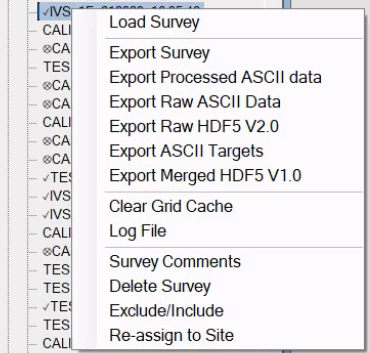
Each Survey Node has a number of useful commands for re-assigning to another site, changing the survey type, exporting data, viewing the log file, adding comments, etc.