Summary
Team Processing allows you to use multiple computers on your network to accelerate the performance of the Auto-Invert flow. Each connected computer will automatically contribute to the inversion of targets.
Verify Network Setup
-
You must have a Network or Network RT licence to run Team Processing.
-
Computers must have a wired network connection. Wireless connections will not be allowed.
-
Computers should be running the same version of BTField.
When you run BTField from the desktop on your machine, you need to ensure that BTField starts up with your network IP address, not 127.0.0.1. Re-start your BTField and check the show advanced checkbox. Click the Enable Networking button to automatically populate your IP address as shown here in this example:
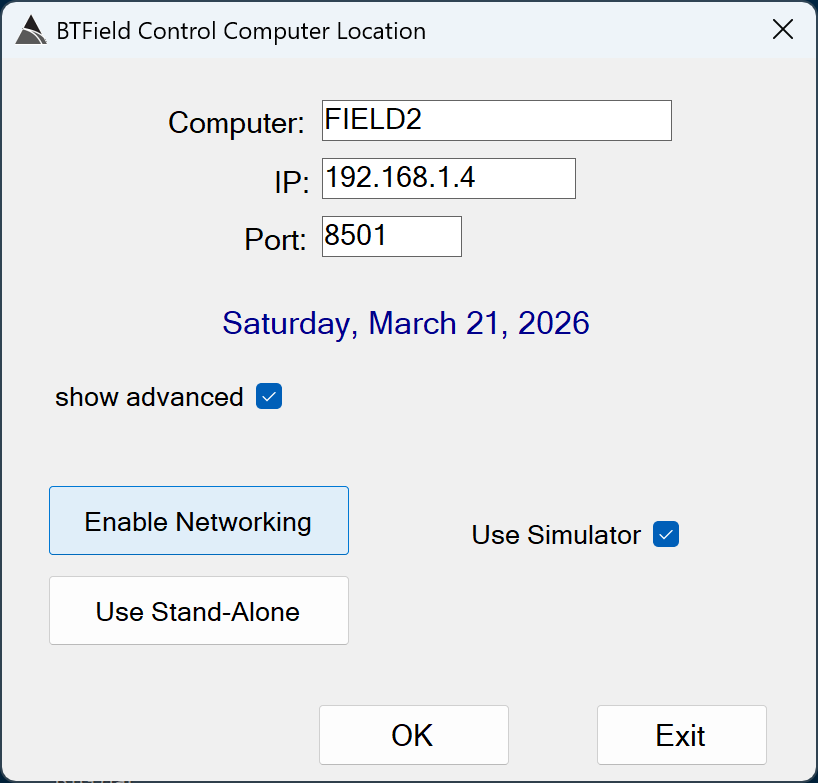
You will be starting the Auto-Invert flow on your machine. For this example, let’s assume your machine has the computer name Field2. Let’s assume the other networked computer has the computer name ClientProc1.
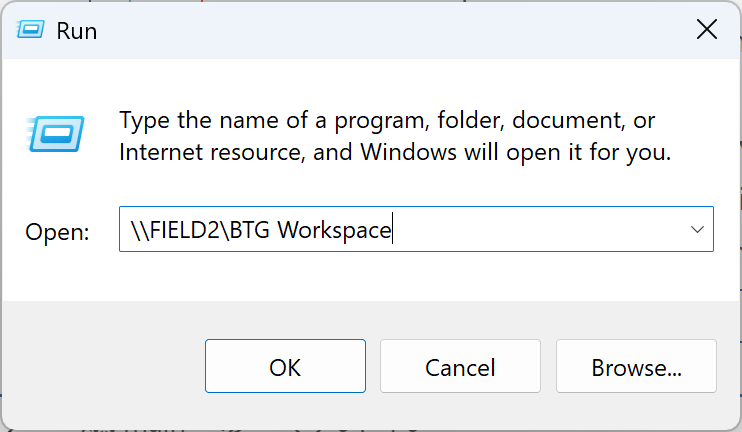
First, you need to ensure that ClientProc1 can see the BTG Workspace folder on your machine Field2. Use the Windows Run command on ClientProc1 to check the connection. Type in the command \\BTFIELD2\BTG Workspace as shown here:
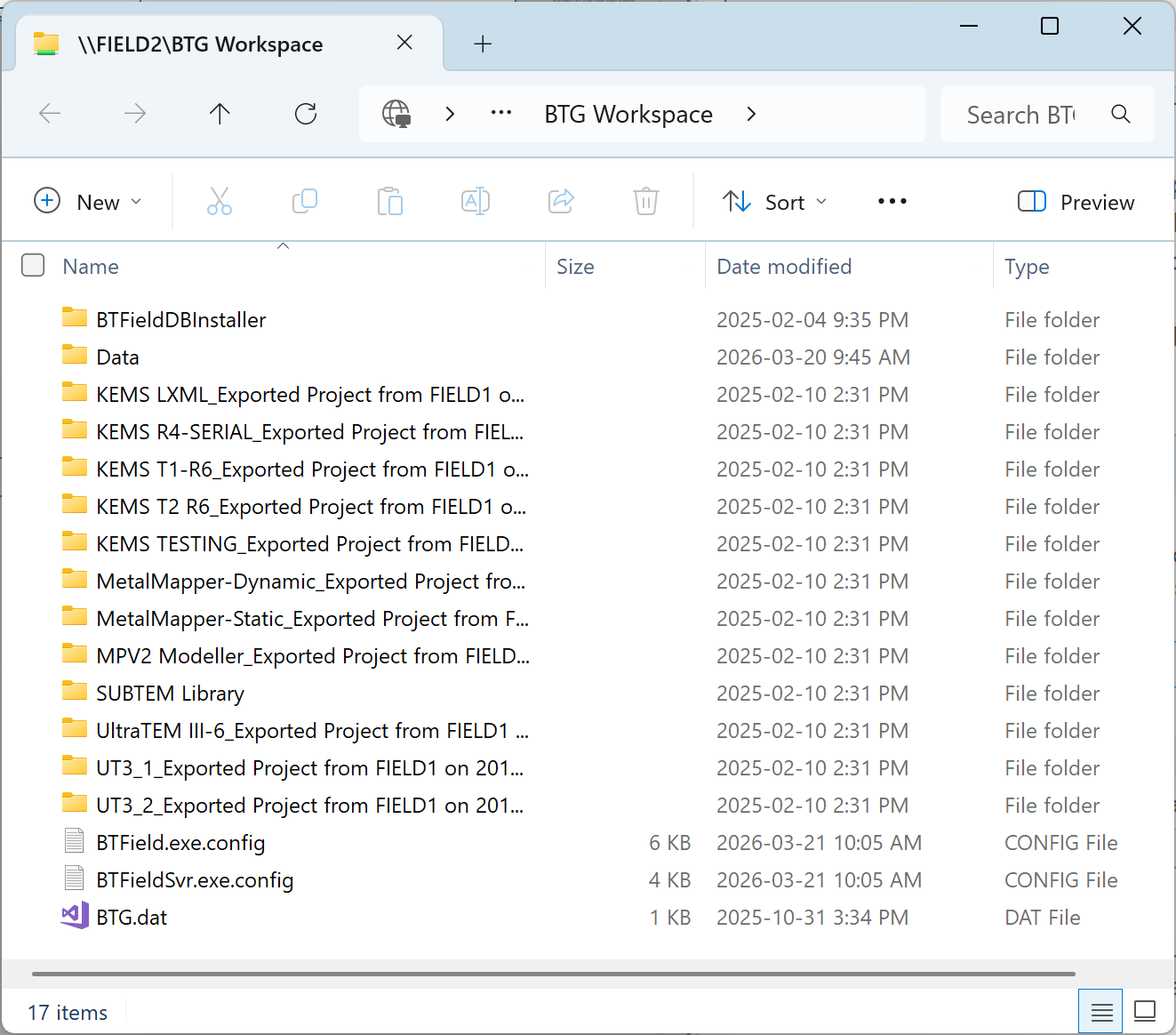
If the connection is successful, you will see the contents of the BTG Workspace folder on Field2. It should look something like this:
If the ClientProc1 computer prompts you for a Windows password, enter the password to allow access to your computer Field2. Choose the option to save the password for future connections.
If the connection fails or times out, then the BTG Workspace folder on your computer Field2 is probably not shared out. To remedy this, go to your computer Field2 and right-click on the C:\BTG Workspace folder. Select Properties and click on the Sharing tab at the top as shown here:
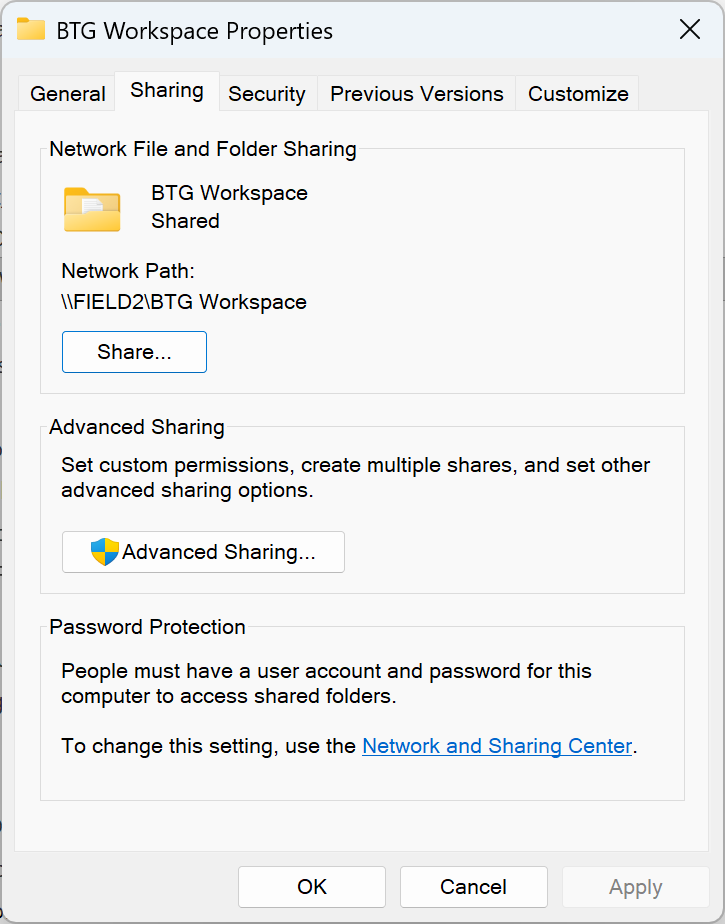
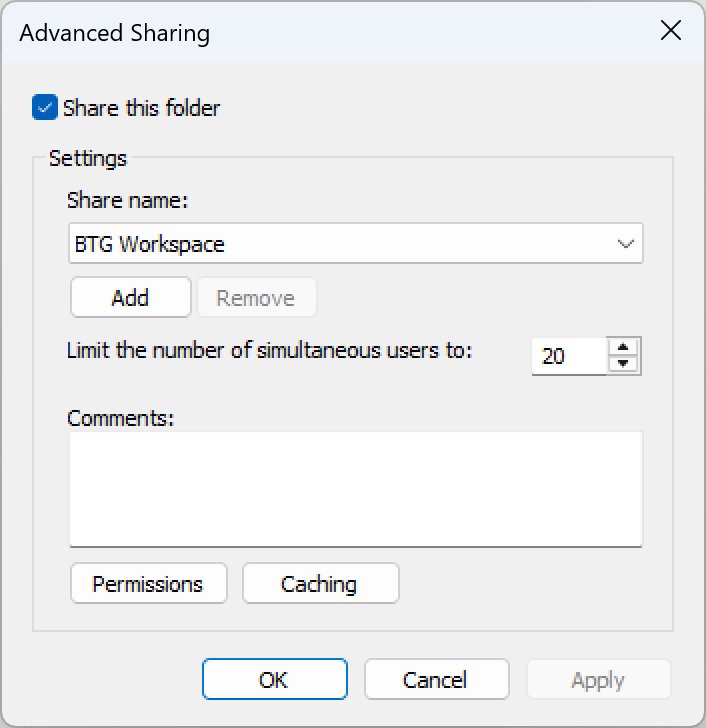
Click on the Advanced Sharing button, then check the Share this folder checkbox as shown here:
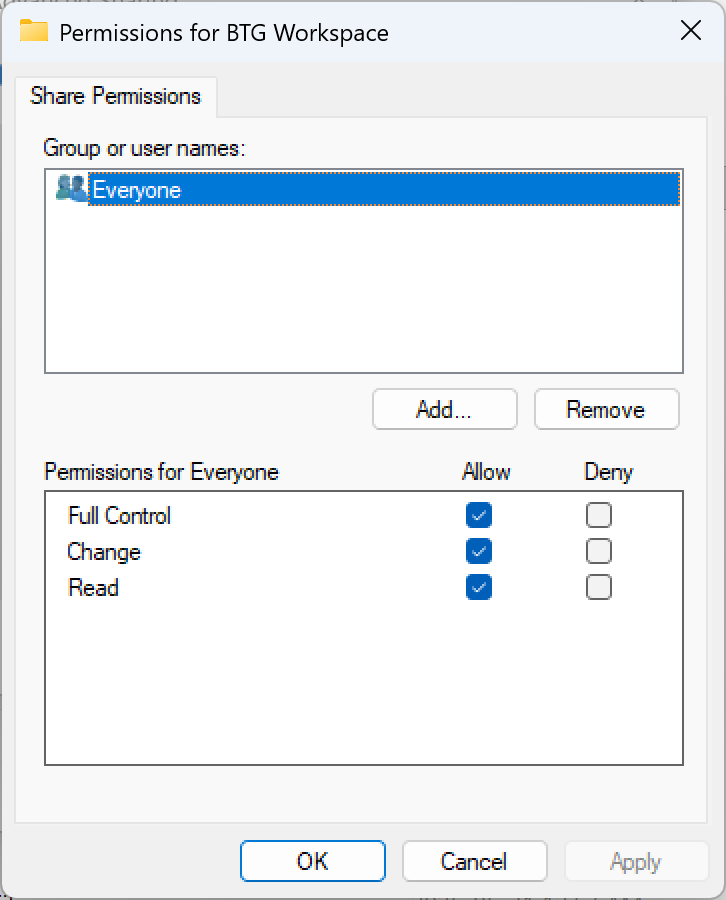
Now click on the Permissions button. Add the Everyone group, and give it all permissions by checking all Allow checkboxes as shown here:
Now click the OK button. Test the connection from the ClientProc1 machine again to confirm the connection works.
Run Team Processing
If you have succesfully verified your network setup, then you are ready to run Team Processing.
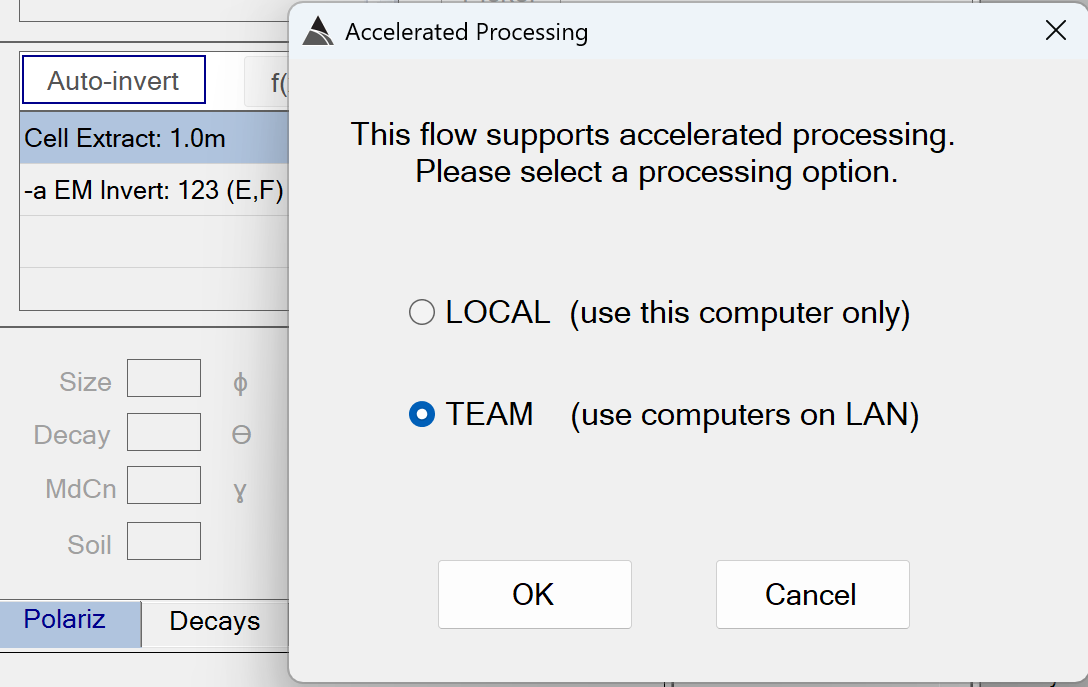
When your Auto-Invert contains an invert function configured with the 123 option, BTField will present you with the Team Processing option as shown here:
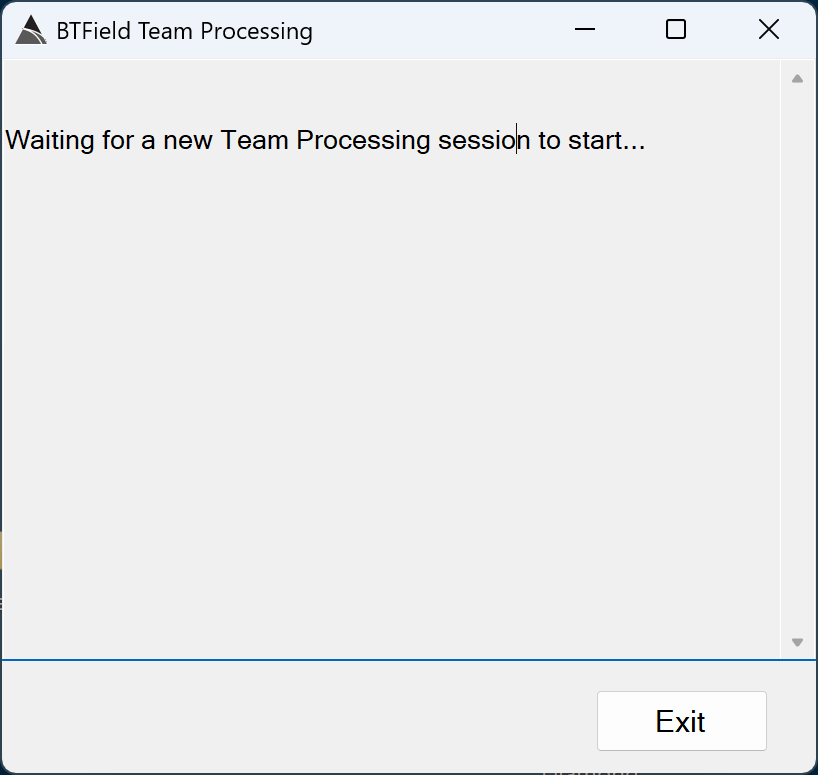
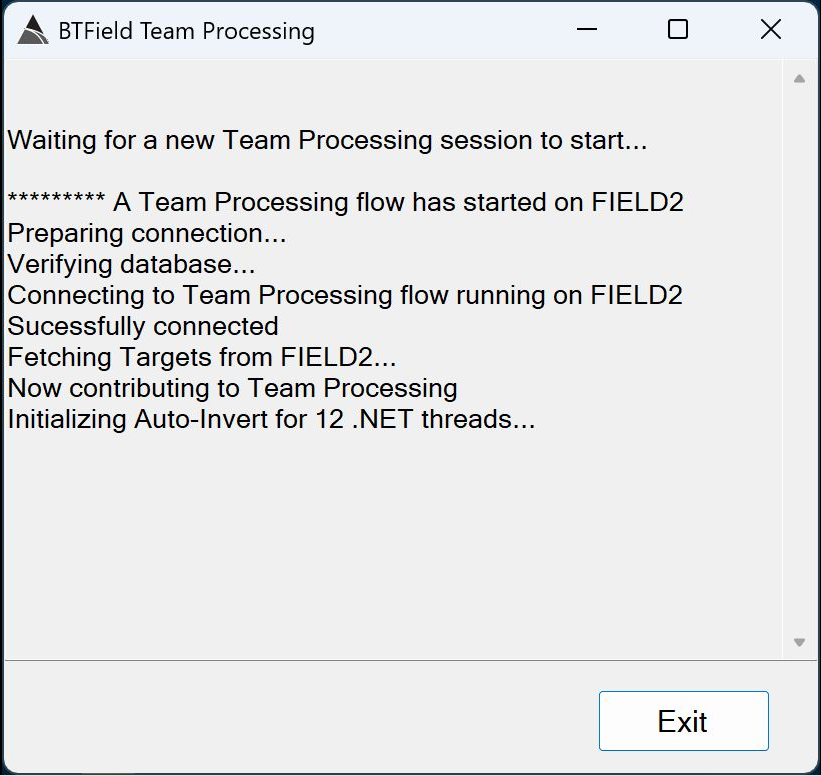
Before you run it, make sure the Team Processing application is running on the other computer(s). In our example, we are using only one other computer, named ClientProc1, so double-click on the Team Processing desktop icon on ClientProc1. It should start up as shown here, indicating that it is waiting for a new Team Processing session to start:
Now you can run the Auto-Invert flow on your machine Field2. With the TEAM option selected, click OK:
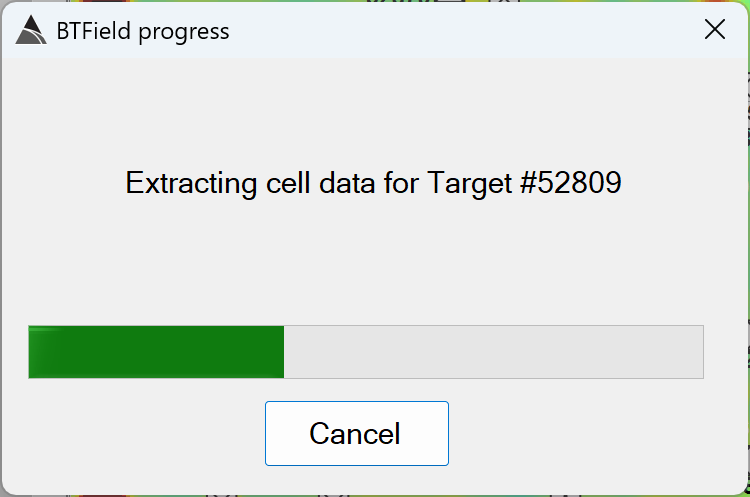
When the flow starts, the cell data will be extracted on your machine Field2, as shown here:
After the cell data is extracted, the ClientProc1 machine will be notified that a Team Processing session has started, and it will automatically connect back to the BTField database on your machine Field2 as shown here:
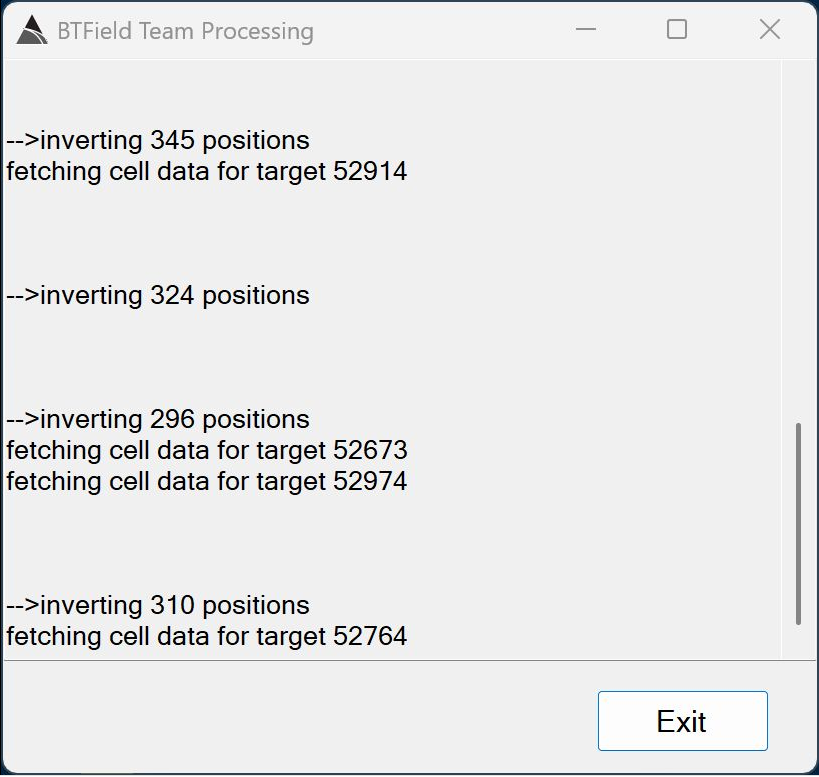
Once connected, the Client1Proc machine will begin contributing to the Auto-Invert flow by fetching and inverting targets as shown here:
On your machine Field2 you will see the progress status now indicate there is one Contributing client
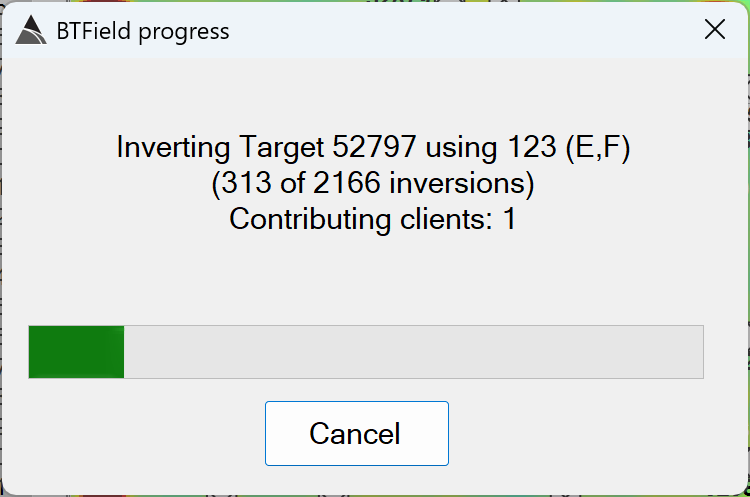
The Auto-Invert will now run approximately twice as fast with two machines inverting the targets (assuming both machines are of equal speed). Additional client machines can be added to further increase Auto-Invert performance.
- Note: when the inversions have completed, your machine may take a few minutes to commit all data and cleanup memory. During this time BTField may be in a temporary “not responding” state.