Overview
BTField’s SQL Server database can be configured with multiple storage drives to hold significant volumes of geophysical data. By default, BTField stores data on the installation drive. If your system has additional drives available (e.g., external USB drives, secondary internal drives, or network-attached storage), you can configure BTField to use them for data storage.
This is particularly useful when:
- The installation drive has limited free space
- You are collecting large volumes of survey data in the field
- You want to separate the operating system and application files from survey data
Accessing Storage Settings
From the BTField General Settings dialog, click the Storage Settings button.
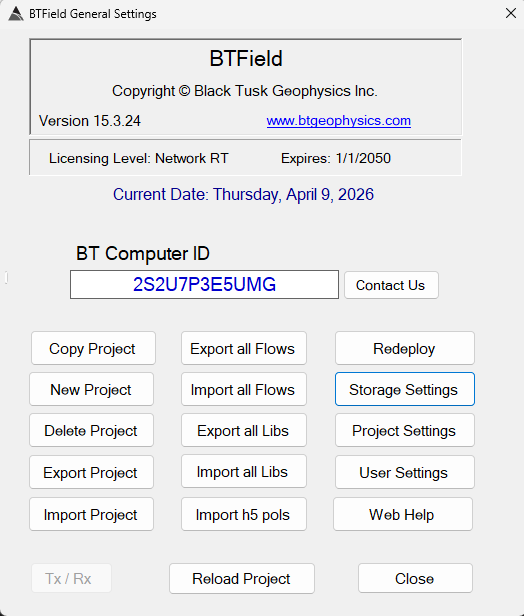
You will be prompted to enter an admin password. Please contact BTG to obtain this password.
Additional Storage Configuration
After entering the admin password, you are presented with the Database Settings window where Additional Storage Configuration can be made.
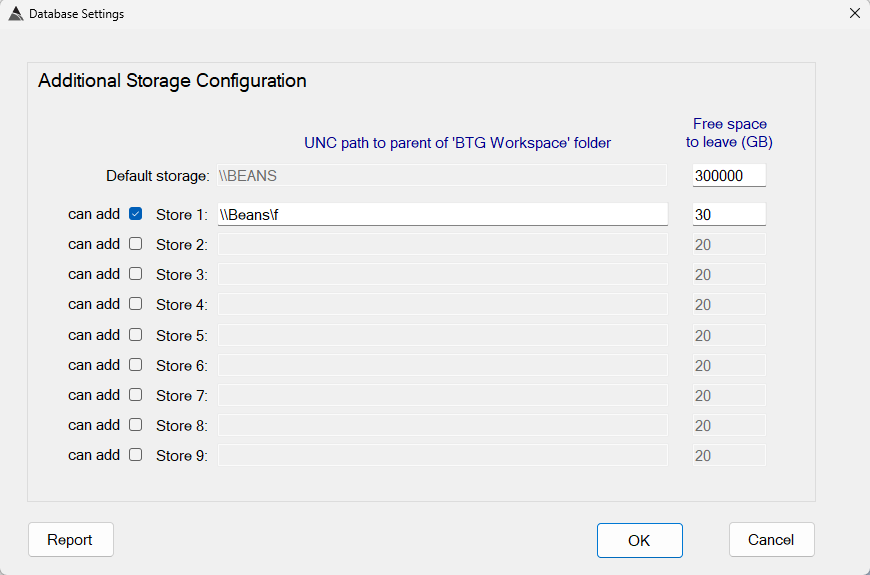
Each row in the configuration has the following fields:
| Field | Description |
|---|---|
| can add | Checkbox to enable a storage location. |
| Store # | UNC path to a folder that has been shared out with read/write/delete permission. |
| Free space to leave (GB) | The amount of free disk space (in GB) that should always remain on the drive. BTField will stop writing to the drive when this limit is reached. |
The Default storage row at the top represents the default storage residing on your local machine. Additional drives are listed as Store 1 through Store 9.
Configuration Example
In the example shown above:
- The computer name of the local machine is
FIELD2. - The Store 1 resides on another computer named
FIELD1, and it has a folder namedBTStorage1that is shared out. Note that this folder doesn’t need to be called “BTStorage1”. It could have any name - except “BTG Workspace”. The BTG Workspace folder will automatically get created underneath it. - Also note that if the Store 1 was residing on the local machine, the Store 1 would be set as
\\FIELD2\BTStorage1. - BTField will store data in the default local storage until only 30 GB remains, then continue storing data on Store 1. When Store 1 has only 20 GB remaining, BTField will move to the next enabled drive in the list. If all configured drives have reached their free space limits, the user will be warned that no space is left.
Sharing out a Storage Folder
Using the above example, here are the steps to share out the BTStorage1 folder on the additional drive
- Right click on the BTStorage1 folder and select
Properties. - In the
Sharingtab, click on theAdvanced Sharingbutton.
Sharing settings - Check
Share this folder, and click on thePermissionsbutton.
Advanced Sharing settings - Set the permissions as shown here:
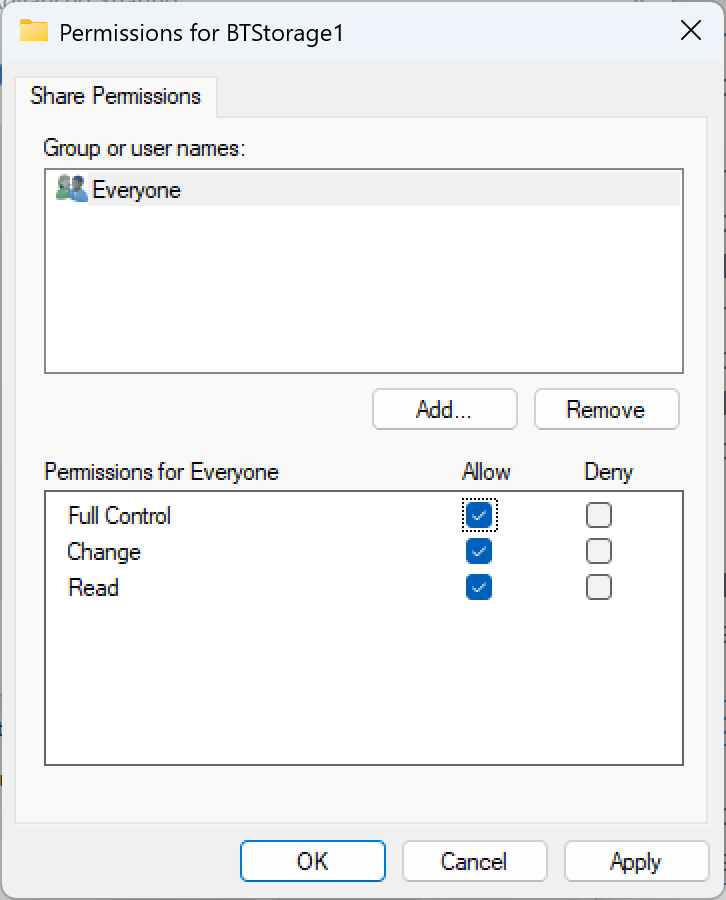
Set Permissions
Removing a Storage Drive
To remove a drive from the storage configuration, uncheck its can add checkbox and clear the UNC path field. Click OK to save the changes.
Notes
- BTField fills drives sequentially — it uses the installation drive first, then Store 1, Store 2, and so on, moving to the next drive when the current one reaches its free space limit.
- Ensure that any external or network drives are connected and accessible before starting BTField, and that they remain connected during operation.
- Up to 9 additional storage drives can be configured.
- Use the Report button in the Database Settings dialog to run a diagnostic on your storage configuration. It validates all configured UNC paths (checking they exist, are accessible, and have sufficient free space) and checks whether any survey data on those drives has a mismatched store index. Results are displayed in a Status Viewer window. If everything is healthy and consistent, it will report “store indexes validated”.